

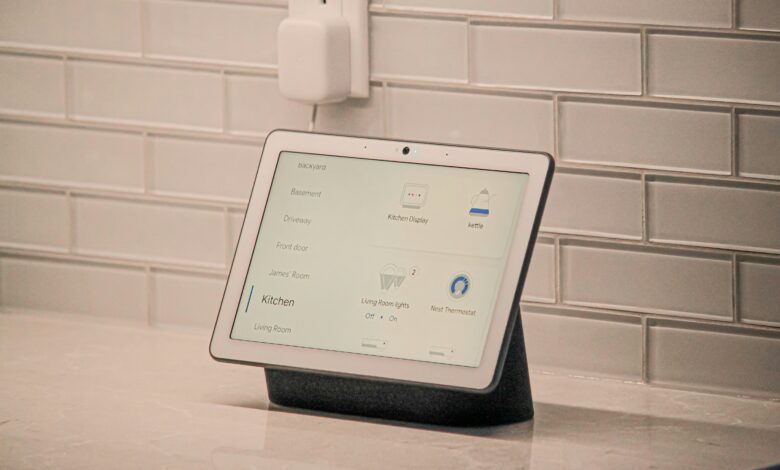
To connect Google Home to wifi, open the Google Home app on your phone, tap Devices, tap Add, choose Google Nest or partner device, pick your home, let the app find your speaker, then select your wifi network and enter the password. The whole thing takes about five minutes. If your speaker is already set up and you are switching to a new router, you cannot just type in a new password. You have to forget the old network first, then run setup again.
That second point trips up almost everyone who moves house or swaps routers. This guide covers both jobs, in order, plus the fixes for when the app says it cannot find your device.
Before You Start: The 4 Things That Cause Most Failures
Check these first. They save you from a factory reset later.
- Your phone must be on the same wifi network you want the speaker to join. The app copies the network from your phone.
- Bluetooth must be on. The app uses Bluetooth to find the speaker during setup, not wifi.
- Stand within about 15 feet of the speaker. Setup fails far more often across a room or a wall.
- The speaker must be plugged in and finished booting. Give it 60 seconds after plugging in.
Skip any one of these and the app will usually say it cannot find your device. That message is almost never a broken speaker.
Part 1: How to Connect Google Home to Wifi (First Time Setup)
This is for a brand new speaker, or one you just factory reset.
- Plug in the speaker and wait about a minute for the lights to settle.
- Open the Google Home app on your phone. Sign in with the Google account you want to own the device.
- Tap Devices at the bottom, then tap Add.
- Choose Google Nest or partner device.
- Pick the home you want the speaker to live in, or create one.
- Wait for the app to show your speaker under nearby devices. Select it and tap Next.
- The app plays a sound on the speaker. Confirm you heard it.
- Choose a room, such as Kitchen or Bedroom. This is what you say later, so name it plainly.
- On the Connect to Wi-Fi screen, choose your network and enter the password.
- Wait for the confirmation. The speaker will link, then may download an update.
That is it. Ask it something simple like the weather to confirm it is online.
Part 2: How to Connect Google Home to New Wifi
You cannot edit the wifi password on a Google speaker. There is no “change password” box. Google built it as forget, then set up again.
Do this while the speaker is still connected to the old network if you can. That is the easy path.
- Open the Google Home app.
- Tap Devices, then touch and hold your speaker tile.
- Tap Settings, then Device information.
- Tap Wi-Fi, then Forget this network. Confirm.
- The app sends you back to the home screen. The speaker is now unpaired.
- Tap Devices, then Add, then Google Nest or partner device.
- Follow the setup steps again and pick your new network.
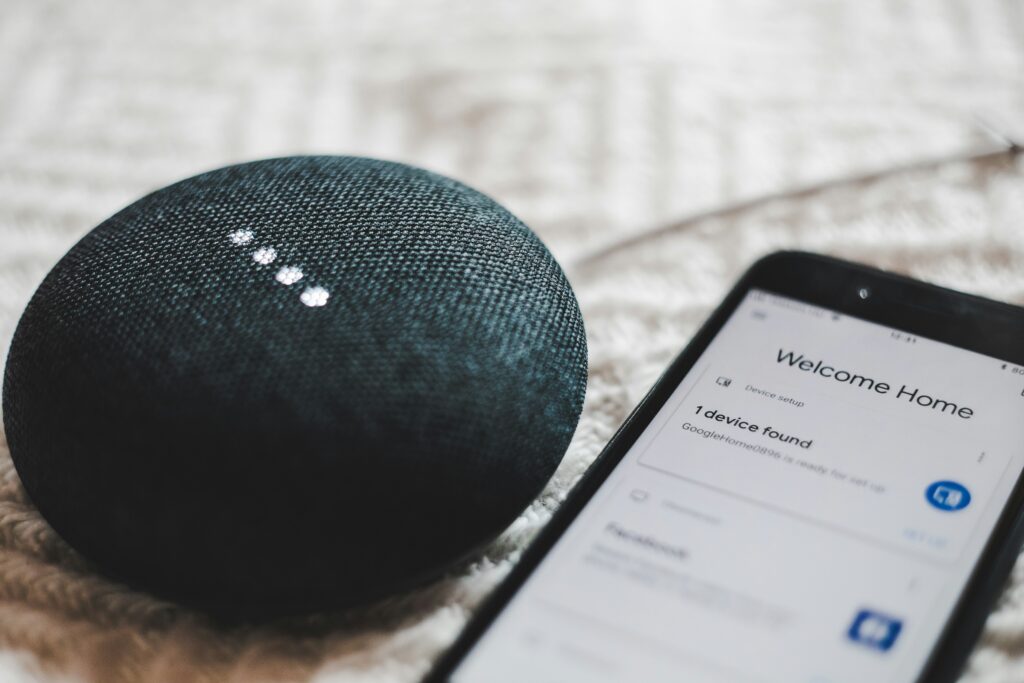
The Catch: New Router Already Installed
Here is the situation most people are actually in. The old router is gone. The internet company took it back. The speaker is sitting there blinking, and it has no way to talk to the app.
In that case, Forget this network usually fails with an error like “could not communicate with your device.” That is expected. You now need a factory reset. Skip to Part 3.
The lesson, learned the hard way: if you know a router change is coming, forget the network on every Google speaker before the old router goes offline. It saves you from resetting the whole house.
Part 3: Factory Reset (Only When Forget Fails)
A factory reset wipes the speaker and puts it back to out of box condition. Your account, routines, and speaker groups stay in your Google account, so you are not losing your settings, only the pairing.
Reset methods differ by model. The general pattern:
| Device | How to reset |
|---|---|
| Google Home Mini (1st gen) | Press and hold the small circular button on the bottom, about 15 seconds |
| Nest Mini (2nd gen) | Slide the mic switch to mute, then press and hold the center of the top, about 15 seconds |
| Nest Audio | Slide the mic switch to mute, then press and hold the top center, about 5 seconds and keep holding |
| Google Home (original) | Press and hold the button on the bottom, about 15 seconds |
| Nest Hub / Hub Max | Press and hold both volume buttons together, about 10 seconds |
Steps to remember for all of them:
- Keep the speaker plugged in the whole time.
- Hold until you hear a sound or a countdown. Do not let go early.
- Wait for the speaker to reboot and announce it is ready for setup.
- Then run Part 1 above on your new network.
If your model is not listed, check the label on the base and look up the reset method for that exact model. Holding a random button does nothing on most of these.
Troubleshooting: Why It Will Not Connect
Here is the fast diagnosis table. Find your symptom, apply the fix.
| What you see | Likely cause | Fix |
|---|---|---|
| App cannot find the device | Bluetooth off, or phone too far away | Turn on Bluetooth, stand next to the speaker |
| Device found, but wifi step fails | Wrong password, or a stray space in it | Retype the password slowly, watch for capital letters |
| Your network is not in the list | Speaker cannot see a 5 GHz only band | Enable the 2.4 GHz band, or use a network that broadcasts both |
| It connects, then drops offline | Weak signal or a crowded channel | Move the speaker closer to the router or add a mesh point |
| Works, but cannot control lights | Speaker joined the guest network | Put the speaker on the same network as your smart bulbs |
| “Could not communicate with your device” | Old router already offline | Factory reset, then set up fresh |
| Setup stalls in a hotel or dorm | Captive portal login pages | Google speakers cannot fill in login pages. Use a travel router |
Two Specific Cases Worth Knowing
Same name for 2.4 and 5 GHz. Many US routers broadcast one network name for both bands. That is usually fine. If setup keeps failing anyway, split the bands in your router app, give the 2.4 GHz band a slightly different name, and connect the speaker to that one.
Guest networks. A speaker on a guest network is walled off from your other devices. It will play music but will not control your plugs or bulbs. Keep the speaker and the smart devices on the same network.
Quick Reference
| Task | Path in the app |
|---|---|
| Connect a new speaker | Devices > Add > Google Nest or partner device |
| Change wifi | Hold device tile > Settings > Device information > Wi-Fi > Forget this network |
| Check if the speaker is online | Devices tab, look for an offline label on the tile |
FAQ
Can I change the wifi on Google Home without resetting it? Yes, as long as the speaker is still connected to the old network. Open the Google Home app, hold the device tile, go to Settings, then Device information, then Wi-Fi, then Forget this network. Then set it up again on the new network. If the old router is already gone, a factory reset is the only way.
Does Google Home work on 5 GHz wifi? Most current Nest speakers and displays support both 2.4 GHz and 5 GHz. Older models are 2.4 GHz only. If your network is 5 GHz only and the speaker cannot see it, turn the 2.4 GHz band back on in your router settings.
Why does my Google Home say it is offline? Usually the router changed, the password changed, or the signal is too weak. Restart the router, wait about 30 seconds, then restart the speaker by unplugging it. If it is still offline, forget the network and set it up again.
Can Google Home connect to wifi without the app? No. There is no web setup page or button on the speaker to enter a password. The Google Home app on a phone or tablet is required for both first setup and any network change.
Do I need to reconnect all my speakers when I change routers? Yes. Each speaker, display, and Chromecast stores the wifi details on its own. Change the router and every device needs the new network individually.
What To Do Next
If your speaker is still on the old network and working, do not wait. Open the app and forget the network before you unplug the old router. That single move saves you from resetting every speaker in the house.
If you are already stuck with a dead speaker and a new router, go straight to the factory reset for your model, then run the setup steps in Part 1. Have the new wifi password in front of you, stand next to the speaker, and keep Bluetooth on. That combination clears most failed setups on the first try.