
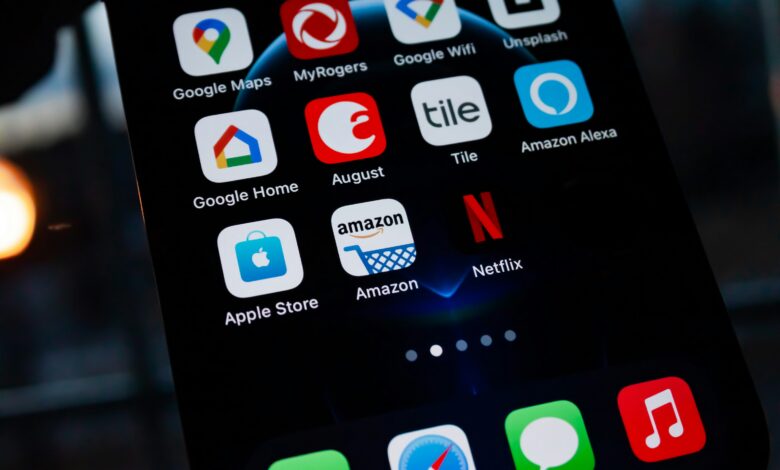
To add an app to your home screen touch and hold the app then choose Add to Home Screen or drag it out. On iPhone the app lives in the App Library. On Android it lives in the app drawer. Missing apps are usually just hidden not deleted.
Learning how to add app to home screen takes only a few taps. The steps are a little different on iPhone and Android. This guide covers both plus how to get lost apps back.
Let us make your home screen work the way you want.
Why Apps Go Missing from the Home Screen
Apps rarely vanish for good. They just move to a hidden spot. Knowing where they hide makes them easy to find.
Here is where they go:
- On iPhone apps sit in the App Library. Swipe left past your last home screen page to see it.
- On Android apps sit in the app drawer. Swipe up from the bottom to open it.
Both spots hold every app you have. From there you can send any app back to the home screen.
How to Add an App to Home Screen on iPhone
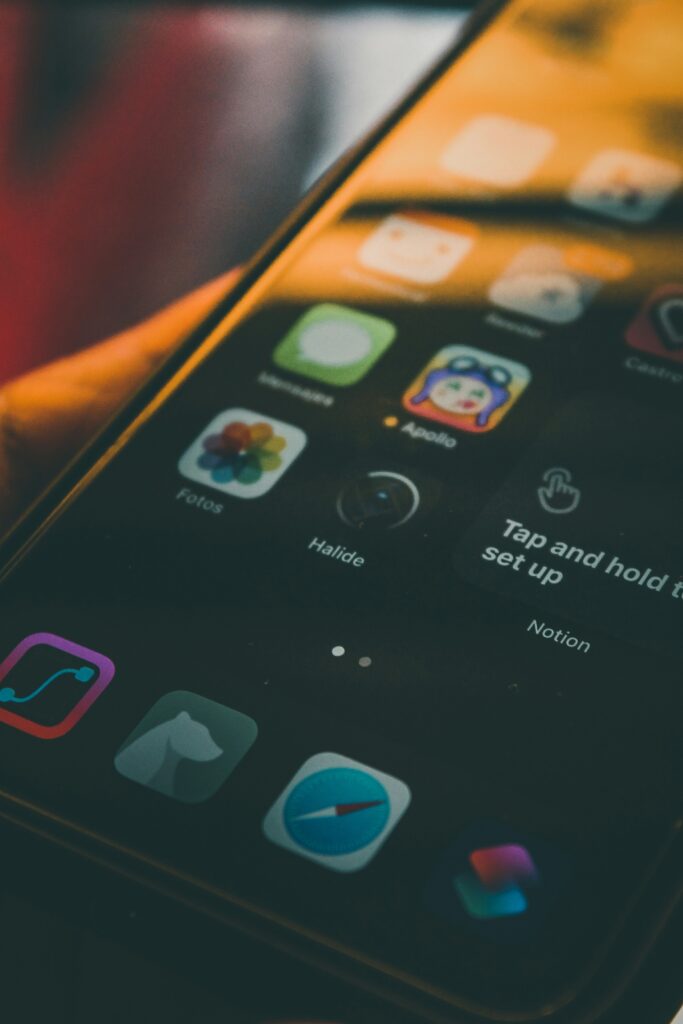
Here is how to put apps on home screen iPhone style. It takes seconds once you know the trick.
- Swipe left past your last home screen page. This opens the App Library.
- Find the app you want. You can also type its name in the search bar at the top.
- Touch and hold the app icon.
- Tap Add to Home Screen in the menu.
- The app now sits on your home screen.
You can also drag the app. Hold it then slide it to the right onto your home screen and let go.
Make New Apps Land on the Home Screen
Tired of new apps hiding in the App Library? You can change one setting so they always show up.
- Open Settings
- Tap Home Screen and App Library
- Under new app downloads pick Home Screen and App Library
Now every app you install will appear on the home screen right away.
Add a Website as an App on iPhone
You can turn a favorite website into a home screen icon too. It opens like an app.
- Open the site in Safari
- Tap the Share button at the bottom
- Scroll and tap Add to Home Screen
- Tap Add in the top corner
Now the site has its own icon on your home screen.
How to Put Apps on Home Screen on Android
Android works a bit differently. The exact wording can change by phone brand. But the steps are close on most models.
- Swipe up from the bottom to open the app drawer.
- Find the app you want.
- Touch and hold the app icon.
- Drag it up onto your home screen and let go. On some phones you tap Add to Home.
- Place it where you like and release.
Many Android phones also have a setting to auto add new apps. Look in your home screen settings for an option like add new apps to home screen and turn it on.
Add a Website Shortcut on Android
You can pin a website to your Android home screen with Chrome. It acts like a quick app.
- Open the site in Chrome
- Tap the three dot menu in the corner
- Tap Add to Home screen
- Confirm the name and tap Add
iPhone vs Android: Quick Steps
Both phones follow the same idea. Find the app in its hidden spot then send it to the home screen. Here is the side by side.
| Step | iPhone | Android |
|---|---|---|
| Where apps hide | App Library (swipe left) | App drawer (swipe up) |
| How to add | Hold app then Add to Home Screen | Hold app then drag up or Add to Home |
| Auto add new apps | Settings then Home Screen and App Library | Home screen settings toggle |
| Add a website | Safari Share then Add to Home Screen | Chrome menu then Add to Home screen |
How to Get Apps Back on the Home Screen
Removed an app icon by accident? Do not worry. Here is how to get apps back on home screen fast.
First know the difference:
- Removed from home screen means the icon is gone but the app is still installed. Find it in the App Library or app drawer and add it back.
- Deleted or uninstalled means the app is fully gone. You need to reinstall it from the App Store or Google Play.
To bring back a hidden icon just follow the add steps above. Hold the app in its drawer or library and send it to the home screen.
Quick Fixes if It Is Not Working
Sometimes the app just will not move. These quick checks usually solve it.
- Restart your phone. A simple reboot fixes many small glitches.
- Update your phone. Old software can cause odd behavior.
- Check for a full page. If a home screen page is full move the app to another page.
- Turn off screen time limits. Some controls hide or block apps.
- Search first. Use the app drawer or App Library search to confirm the app is installed.
If an app is still missing after all this it was likely uninstalled. Reinstall it from your app store.
Frequently Asked Questions
How do I add an app to my home screen on iPhone?
Swipe left to open the App Library. Touch and hold the app you want. Then tap Add to Home Screen. You can also drag the app to the right onto your home screen.
How do I get apps back on my home screen?
If you only removed the icon the app is still installed. Open the App Library on iPhone or the app drawer on Android. Hold the app and add it back to the home screen. If it was uninstalled reinstall it from the store.
Why do my new apps not show on the home screen?
Your phone may be set to send new apps to the App Library or app drawer only. Change this in your settings so new apps appear on the home screen right away.
Can I put a website on my home screen like an app?
Yes. On iPhone use Safari Share then Add to Home Screen. On Android use the Chrome menu then Add to Home screen. The site gets its own icon.
Final Take
Adding an app to your home screen is quick once you know where apps hide. On iPhone check the App Library. On Android check the app drawer. Then hold the app and send it to the home screen.
Your next step takes one minute. Open your settings and turn on the option to add new apps to the home screen. Then you will never hunt for a new app again.